# How to create a global .gitignore file
## Add a global .gitignore
1. Open the Terminal
2. Run `touch ~/.gitignore_global` to create a global .gitignore file in the home directory
3. Run `open ~/.gitignore_global`
4. Add `.vscode/` and any other files or directories that you want to ignore and not include in project-specific `.gitignore` files (don't forget to save!)
5. Run `git config --global core.excludesfile ~/.gitignore_global`
That's it! Using `.gitignore_global` will let you customize your editor without having to edit and commit changes to the `.gitignore` file for every single project.
## Editor Specific Example
Visual Studio Code (and other editors) have the ability to make customizations to fit your needs; especially through extensions. I recently started using the Peacock extension to quickly distinguish between multiple VS Code instances that I may have open at one time. You can customize Peacock to change the color of your Activity Bar, Status Bar and/or the Title Bar.
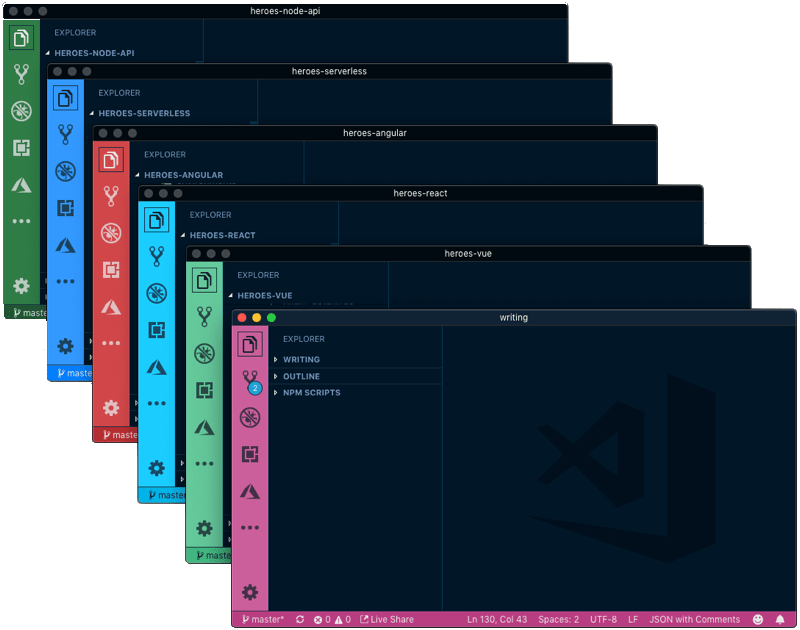
I like the subtlety of only changing the Title Bar color:
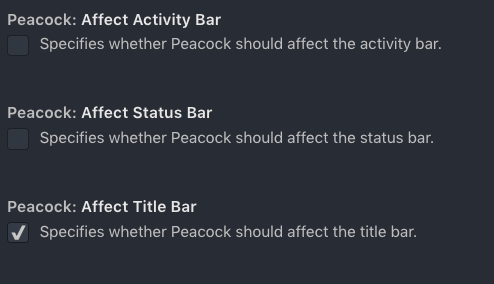
This will create a `settings.json` inside of a `.vscode` folder. While this is applicable to your local editor, it may not be appropriate to commit to the repository (after all, your teammates may be using Atom, Sublime or Vim). Instead of adding these editor specific files to `.gitignore` for every project, you can create a `global .gitignore`.
## Resources
1. Github - Ignoring Files